Defaults are chosen for an imaginary average phone on an imaginary average connection, and almost nobody owns either. Ten minutes spent tuning HI TV APK settings to your real device pays back in every session: steadier playback, subtitles that suit your eyes, and downloads that behave the way your data plan needs them to.
Change one group at a time — quality first, then playback behaviour, then downloads — and live with each change for a day, so improvements and regressions both have an obvious cause.
Stream Quality: Match It to Your Connection
Quality is the master setting. Match it to your connection rather than your hopes: a stable standard-quality episode beats a top-quality one that stalls at every revelation. Where an automatic option exists, it adapts as your network fluctuates and prevents most stalls on variable home Wi-Fi.
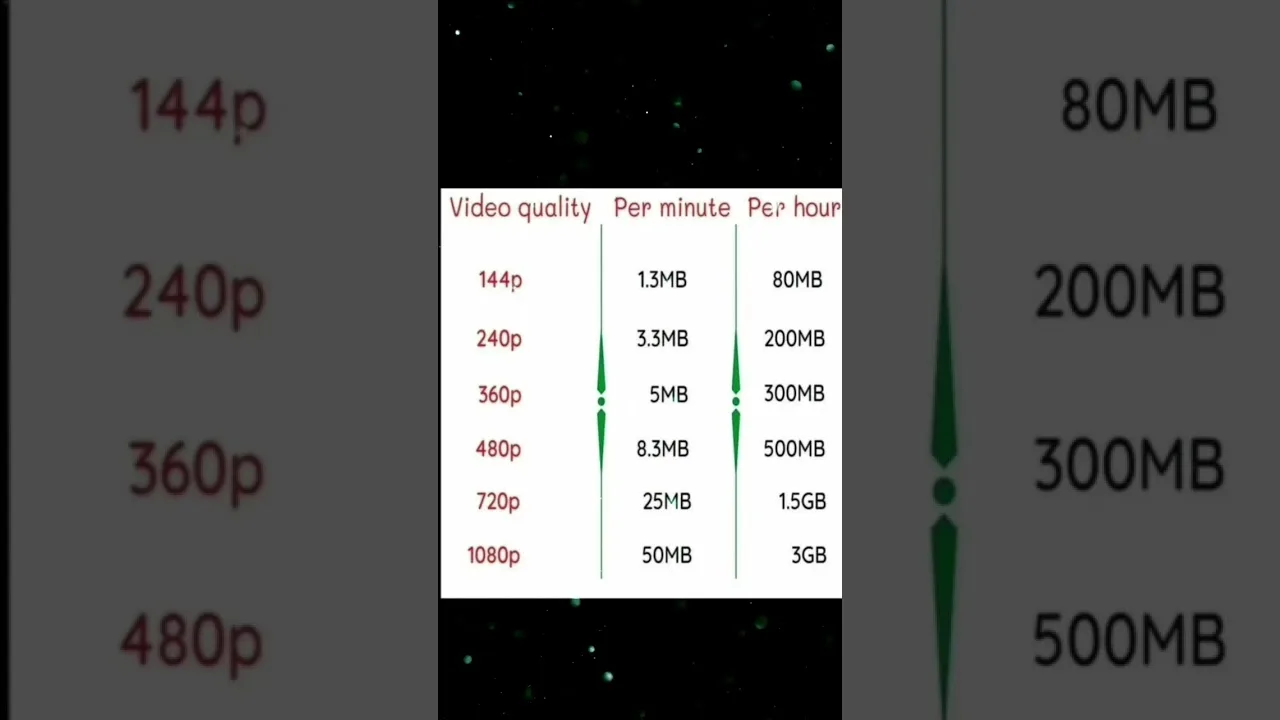
The data cost of each level is laid out in our data usage guide — worth one read before settling this setting, especially if any of your viewing happens away from home Wi-Fi.
Subtitle and Playback Behaviour
Set subtitle size and style to your screen and your eyes before a series, not during one: legible text over a subtle background makes long drama sessions far less tiring, and the choice usually persists across episodes once made.
Resume behaviour deserves a look too. Confirm the app remembers positions across your history the way you expect — a series app earns its keep by dropping you exactly where the last episode ended, every time. The feature overview in our features guide explains how history and resume fit together.
Download Settings and Storage
If you use offline viewing, decide your download quality deliberately: standard definition episodes are dramatically smaller, and on a phone screen the compromise is minor. Set downloads to Wi-Fi only unless your plan is generous, and pick a storage location with genuine headroom if your phone accepts a memory card.
Downloads quietly become the largest thing on a streaming phone. A monthly glance at the downloads folder — deleting finished series — keeps both storage and the app healthy.
Data and Background Options
Audit the whole phone's background behaviour: cloud uploads, app updates, and large downloads scheduled for the evening compete directly with your episode. Set the big jobs to Wi-Fi only and overnight hours where possible.
Battery optimisation can also interfere: if episodes pause when the screen locks during audio-style listening, exempting the app from aggressive power saving is the fix to try.
Final Thoughts
Good settings are personal — the right setup beside the router is wrong two rooms away on a budget phone. Tune quality to your connection, set subtitles for your eyes, make downloads obey your data plan, and then stop adjusting. The best configuration is the one you forget exists.