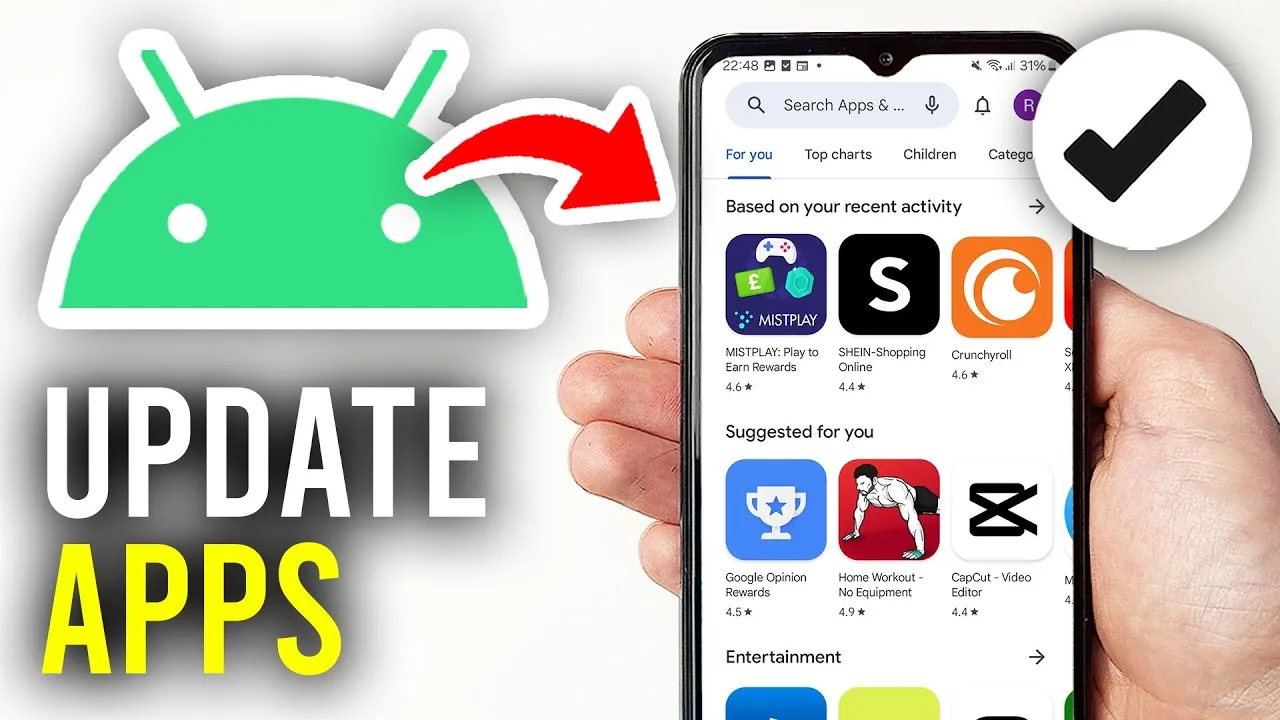
Keeping a streaming app updated is the cheapest maintenance there is, and it quietly prevents a large share of problems before they start. New builds of HI TV for Android repair broken streams, improve subtitle and download handling, and keep pace with Android's own changes. This guide covers checking your version, updating in place, and verifying the new build afterwards.
An update is not a reinstall: installed over the existing app, it preserves your watch history, favourites, and downloaded episodes. The whole routine takes minutes, most of them spent downloading.
Check Your Current Version First
Find the version number in the app's settings or about screen and note it down. Afterwards, the changed number is the only certain proof the update actually applied rather than failing silently in the background while you were not looking.
If months of use have made the app sluggish, clear its cache from Android's app settings before updating to give the new build a clean start. Cache clearing never touches history or downloads — those live in app data, which an update preserves. Our cache and storage guide explains the distinction.
Download and Install the Update
Fetch the new build from the download page and install it over the existing app, accepting Android's confirmation that the install replaces what is already there. Let the process finish completely before opening the app; an interrupted update can leave it in a half-finished state that behaves strangely.
If the install is refused, the usual cause is the per-source install permission for your browser or file manager. The first-time steps in our installation guide show exactly where that permission lives.
What to Check After Updating
Confirm the version number changed, then run three quick tests: play a drama episode, open your history to confirm it survived, and check the downloads list if you keep offline episodes. Those checks exercise the parts of the app your routine actually depends on.
If a category looks empty in the first session, close and reopen the app once before troubleshooting — lists rebuild on a fresh launch, and most post-update oddities never happen twice.
How Often Should You Update?
Every few weeks, or immediately when something misbehaves: a stream or subtitle track that broke yesterday is often repaired by a build released today. Leaving updates for months is how small fixable issues harden into the belief that the app has stopped working.
The balanced rhythm is within a week or so of noticing a new version — late enough to skip day-one bugs, early enough to stay compatible with everything the app must work with.