A streaming phone accumulates three kinds of weight: the app cache, the app data, and the downloads folder — and only one of them should be cleared casually. In this HI TV app, the cache normally helps, but grown stale it produces sluggish menus and broken thumbnails, while downloads silently become the largest thing on the device. This guide separates the three, shows what to clear, and keeps your history and episodes safe.
Android's two buttons — Clear Cache and Clear Data — do very different things, and choosing wrongly erases settings and history. Start there.
Cache, Data, and Downloads: Three Different Things
The cache holds disposable files the app can rebuild: thumbnails, temporary playback data. Clearing it is safe and reversible; sections simply reload their images as you browse. App data holds your settings, favourites, sign-in state, and watch history — clearing it resets the app to a fresh install, a last resort rather than maintenance.
Downloads are neither: they are your saved episodes, stored as real files. They are managed by deleting episodes inside the app, never by the cache button, and they are usually where the serious storage lives.
How to Clear the Cache
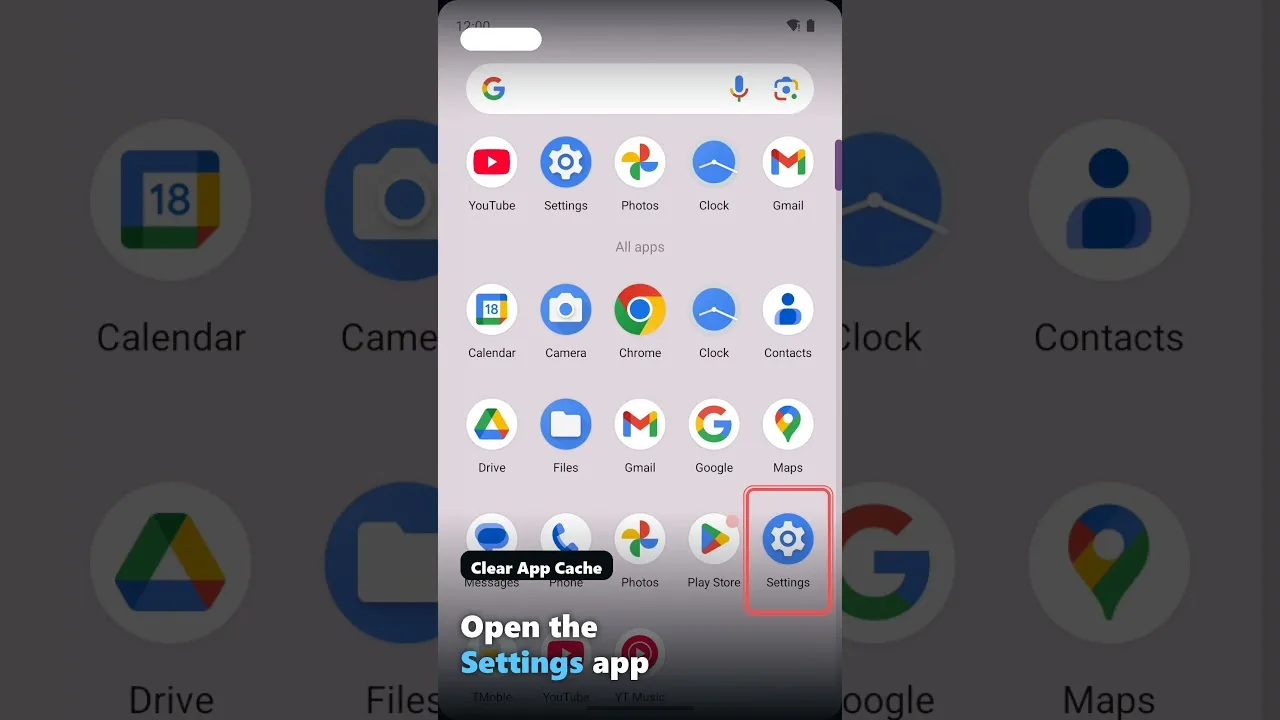
Open Android Settings, go to Apps, find HI TV, open Storage, and tap Clear Cache — not Clear Data. Seconds later you are done, with nothing to reconfigure and your history untouched. Browse normally afterwards while thumbnails repopulate.
If the app had been misbehaving — images failing, categories looking outdated — test it now before doing anything else. Cache clearing resolves a large share of odd glitches, which is why it appears in our not working fixes as well.
Freeing Storage Beyond the Cache
Audit downloads first: finished series are the biggest, most deletable weight on most streaming phones. Then the browser's download folder, stale APKs from earlier installs, and other apps' caches. Messaging apps are the other silent giants, their chat media routinely passing 5 GB.
Android's storage screen ranks everything by size. On tight devices, pair the tidy with the habits in our low-end phone guide: a gigabyte or two kept free improves everything the phone does, not just streaming.
How Often Should You Do This?
Cache clearing monthly or whenever the app feels stale is plenty; daily clearing forces re-downloads of thumbnails the app would have reused. Downloads deserve a pass at every series finale — delete as you finish, and the big tidy never becomes necessary.
Treat storage warnings as a queue: downloads first on a streaming phone, then cache, then chat media, then unused apps. Ten minutes restores breathing room on nearly any device.
Final Thoughts
Clear the cache freely, guard the data, manage downloads like a shelf. Learn those three rules and HI TV stays light, fast, and exactly as you left it — history, favourites, and tonight's episode all in place.